
Overview
This module provides realtime synchronization of mpesa payments made by your customers and facilitates reconciliation with invoices through the Customer Portal or Backend.
There is also an optional STK push feature to conveniently prompt the customer to authorize payment.
Configuration
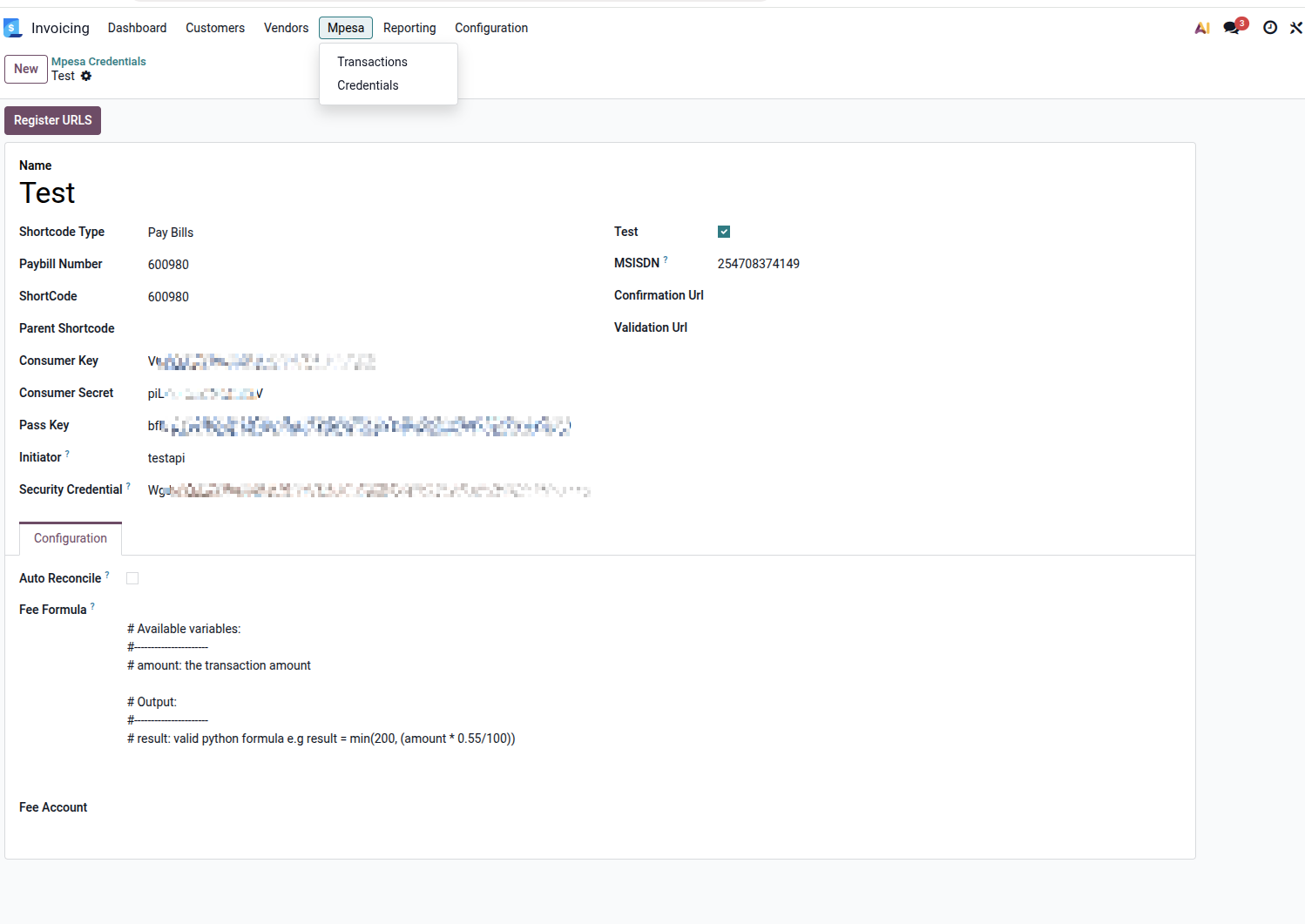
Set up your credentials from Invoicing/Accounting > Mpesa > Credentials
Click on the register urls button to register the validation and confirmation URLs.
The Confirmation and Validation URLs should autopopulate upon clicking the Register URLs button.
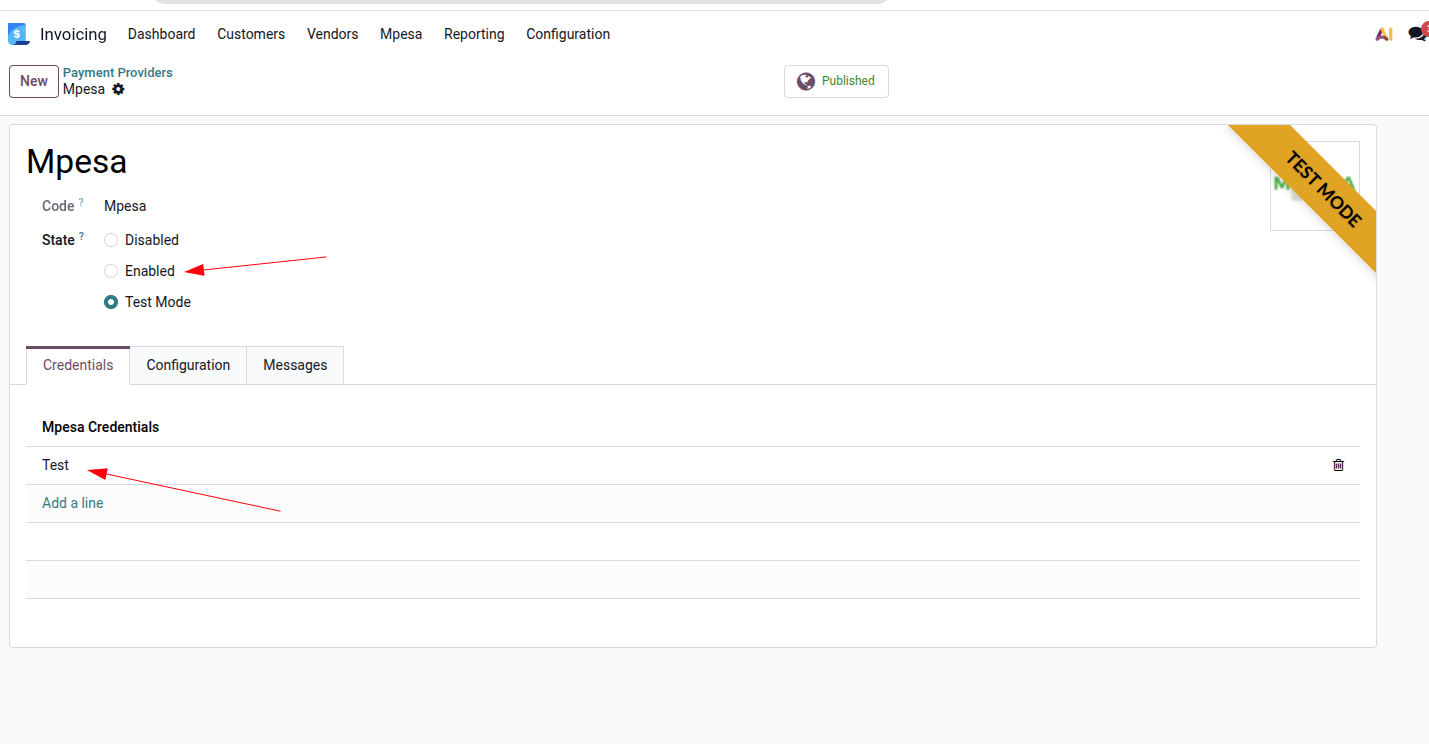
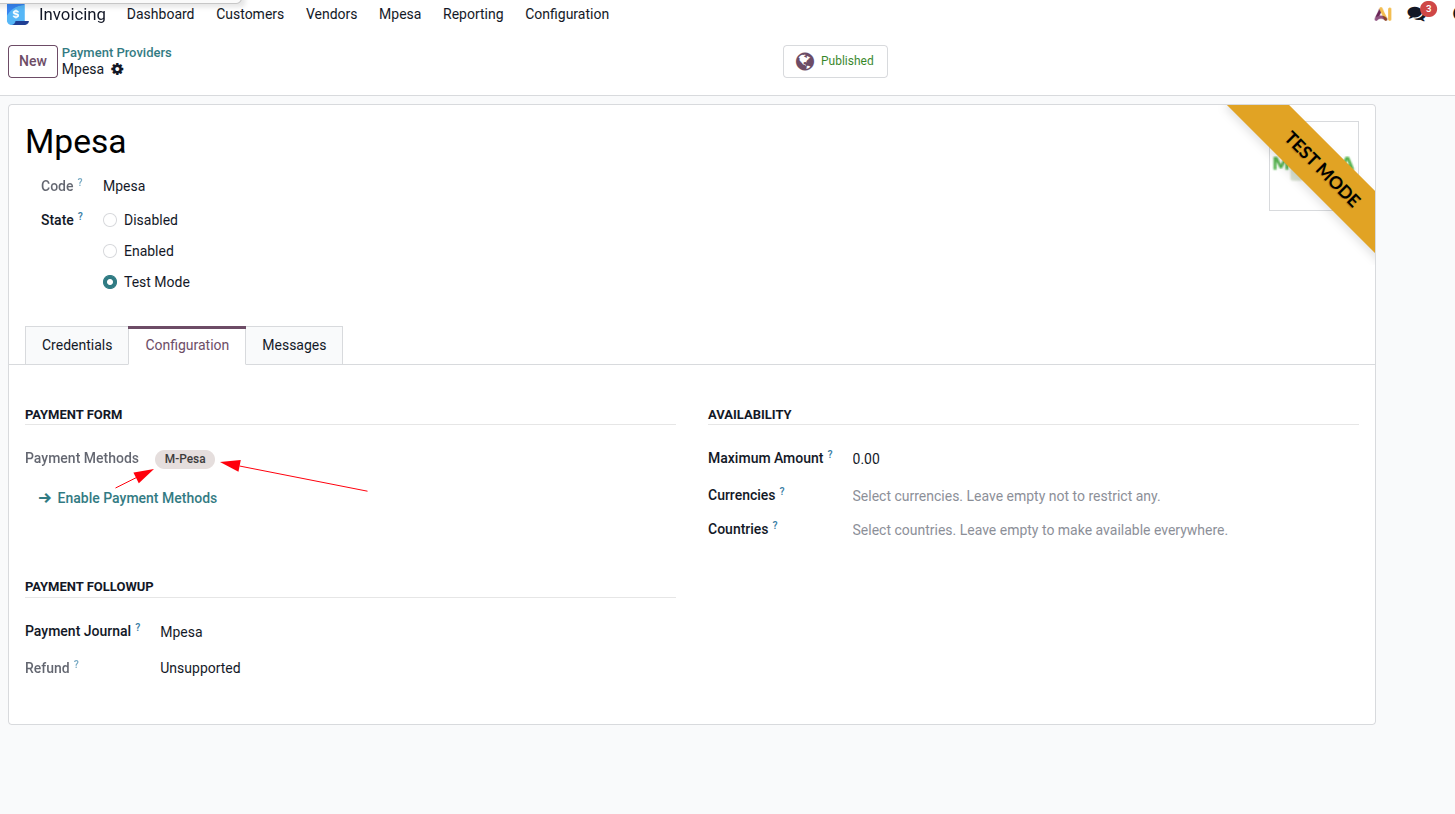
For portal use, ensure the mpesa payment provider is enabled, the correct credentials are selected, and the M-pesa payment method is selected
How It works
Click The standard Pay button on an Invoice
The register payment wizard will be shown with 2 additional buttons: 'Send STK' and 'Validate Pyment'
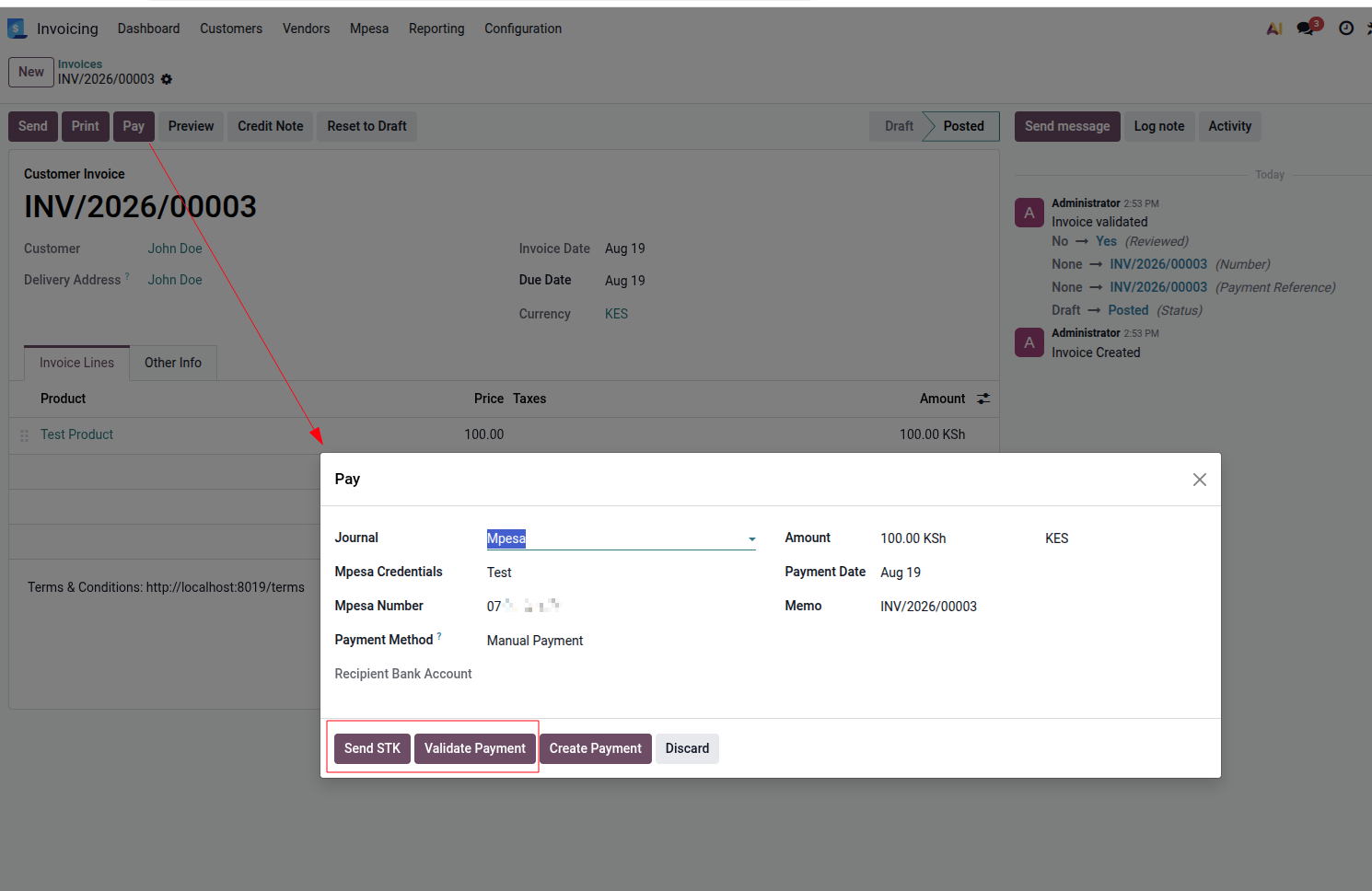
Review the suggested Mpesa Credentials and client's Mpesa Number, then click 'Send STK' to send a payment request prompt (only if necessary).
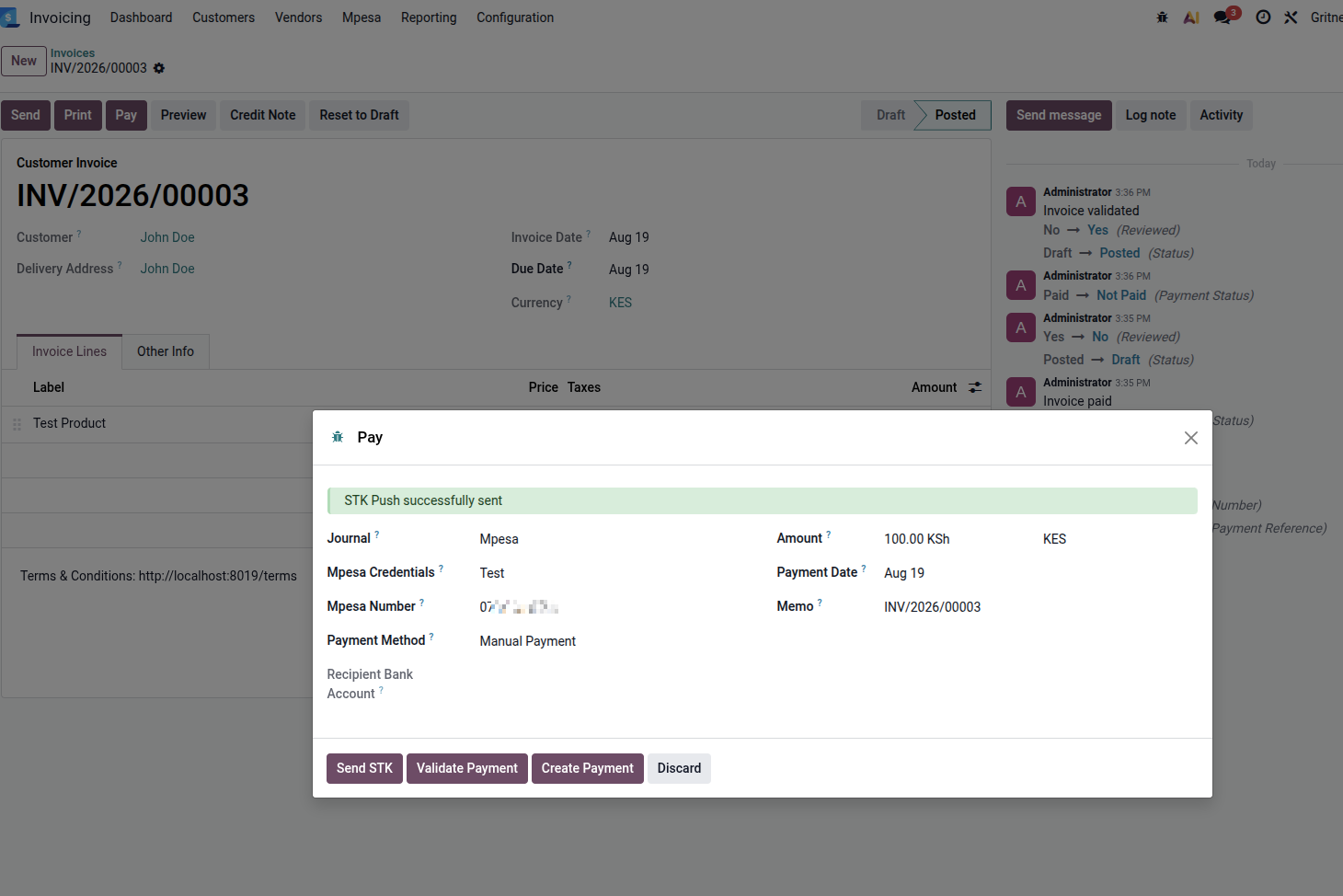
You will get a notification regarding whether the STK push was sent or not.
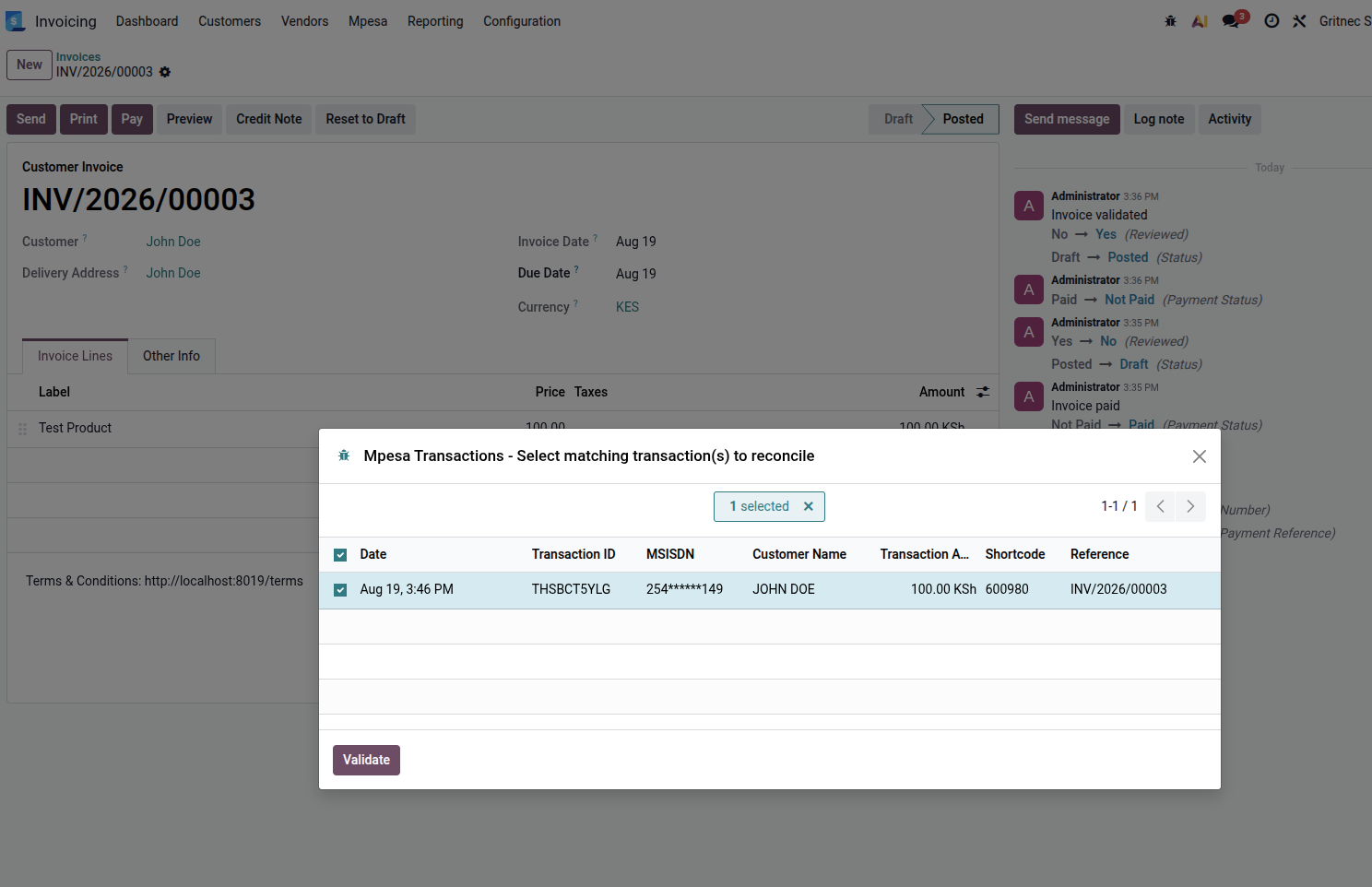
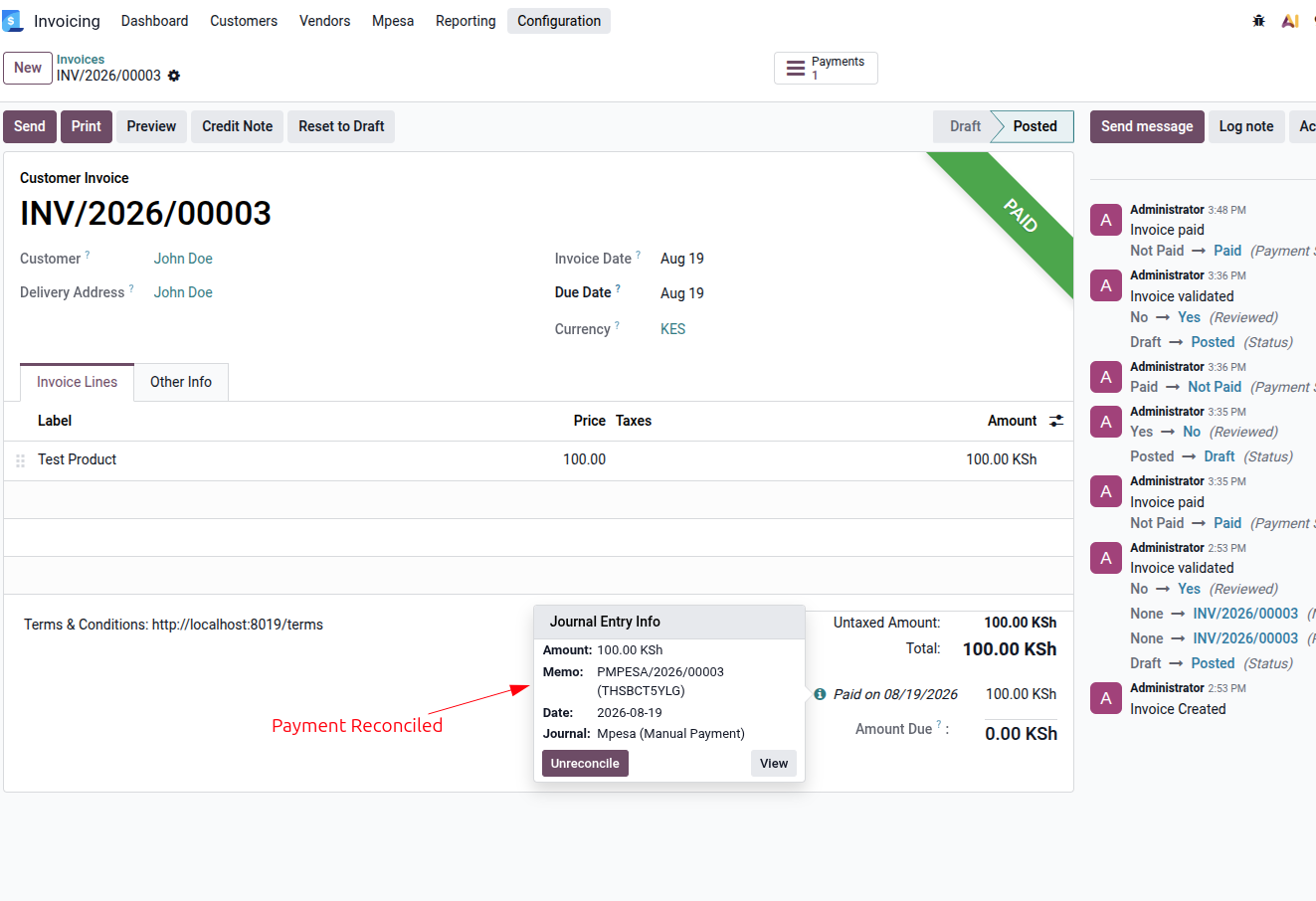
Upon payment, click the 'Validate Payment' button and a list of matching transactions will be shown, select the correct one and click validate. This will reconcile the mpesa transaction with the invoice.
Similarly, the portal process is straightforward.
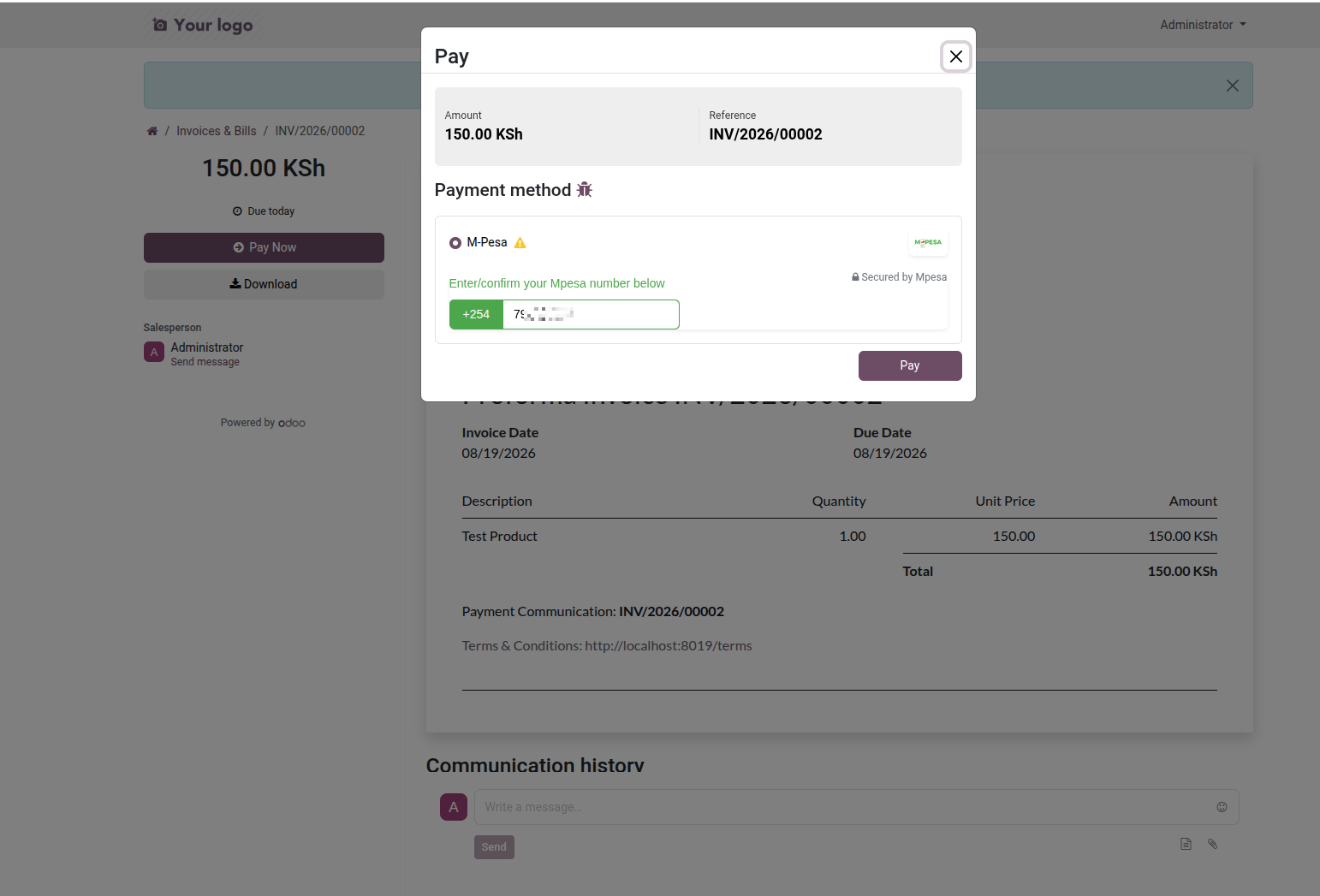
The customer clicks 'Pay Now' on the invoice page, the payment wizard is shown with an option to confirm the phone number.
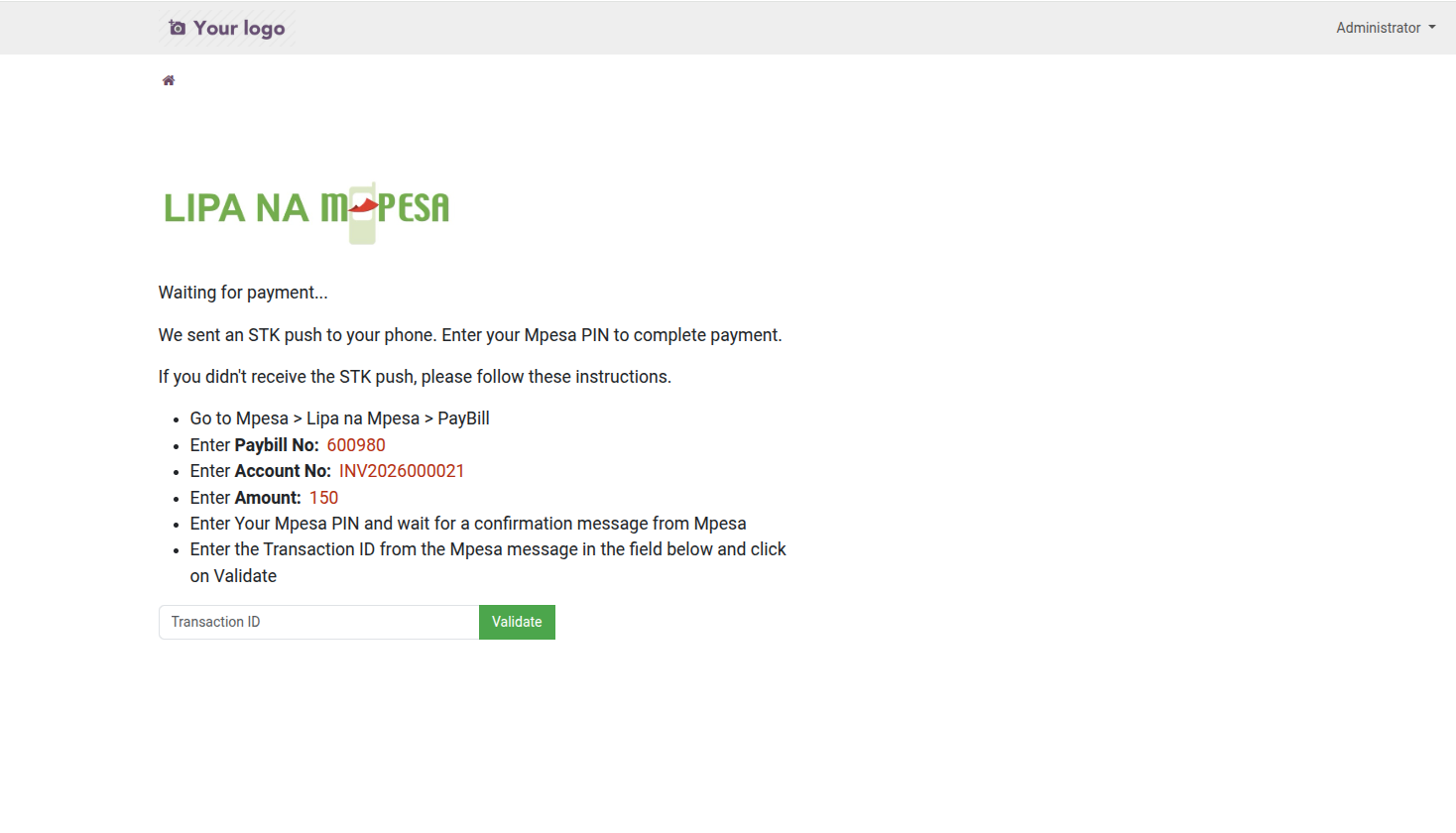
The customer then clicks Pay, an STK push is sent to the entered phone number, and is redirected to a waiting page with payment instructions incase they missed the prompt.
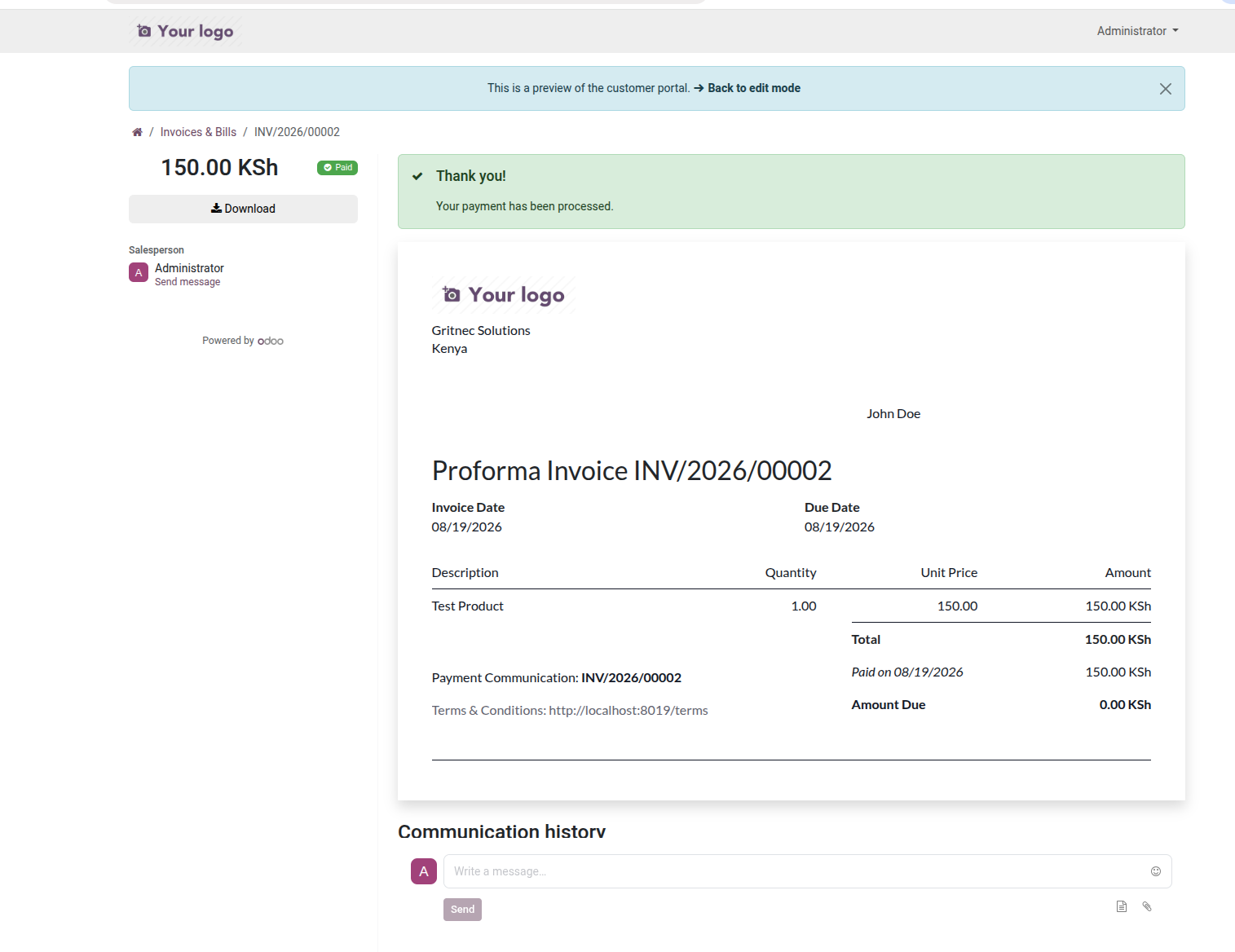
The system then keeps checking for the payment in the background. Once a matching payment is detected, it is reconciled with the invoice and the customer is redirected to the 'payment success' page.